![logo h white.png]](https://cptest.aplazer.com/hs-fs/hubfs/Images/Logos/logo%20h%20white.png?height=40&name=logo%20h%20white.png)
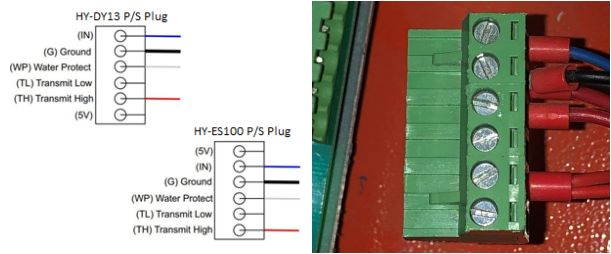
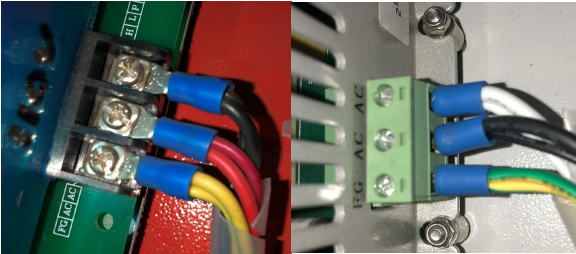
Using the dropdown menu under [Enable roating] change from No to Yes. Your circle pulse should read 15800.00 and Diameter(mm) is set to 100.00. Once you have Enable the rotary click on the [Write] to confirm and install the changes.
For the next step, you will need to turn the machine off to hook up the rotary device.
With the machine powered off locate your Y-axis motor positioned in the back of the machine. See figure below.
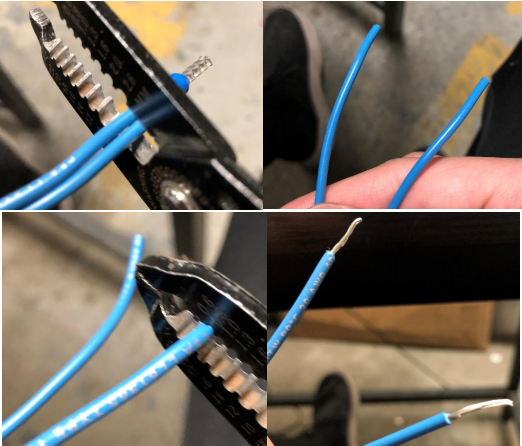
Unplug the Y-axis motor from the green bridge connector. Place your Rotary Tool in the machine with the motor side being on your left with the motor facing toward the back of the machine (Figure A). Plug the Rotary Tool into the bridge connector where you unplugged the Y-axis motor (Figure B). See Figures below.
Figure A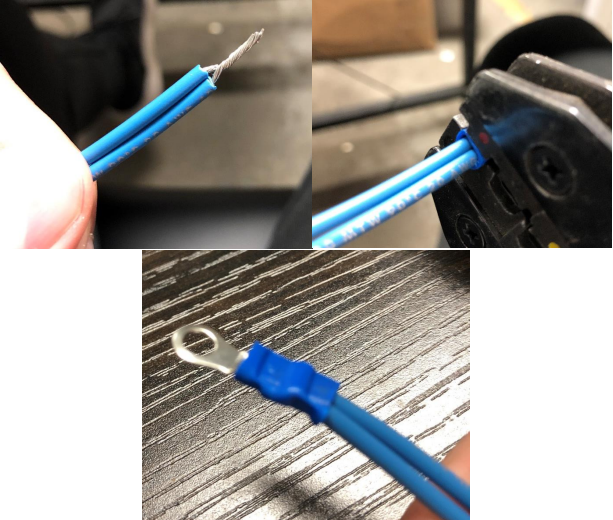
Figure B
After the Rotary Tool is connected make sure your laser head is clear of anything in its way and power the machine ON. The machine will go through the process of doing the DATUM and the laser head will move all the way to the left-hand side of the machine while the wheels on the Rotary Tool spin. Once this process has stopped you can load your material into the Rotary Tool.
To disengage the Rotary Tool follow the exact same walk-through. Under the User Tab first, click on [Read] scroll down, and turn the Rotary to off. [Write]. Power OFF the machine, unplug the Rotary Tool, and plug the Y-axis motor cable back into the green bridge connector.